Build a House PC Controls
Keyboard and mouse layout for faster upgrades, shopping, and brick placement.
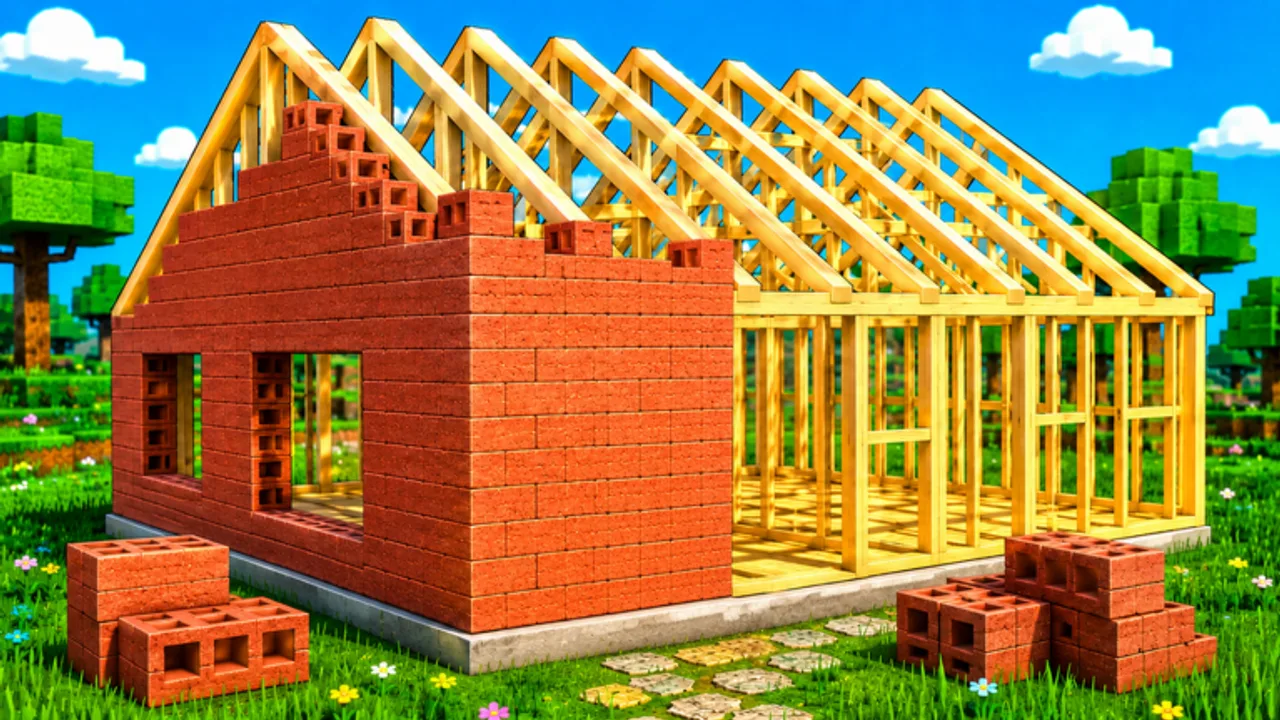
Playing Build a House on PC gives you precise mouse placement and instant hotkeys for the three menus you will open all session: Upgrades, Shop, and Settings. This page is the keyboard-first companion to the Controls Hub.
Good PC control is less about exotic keybinds and more about keeping the mouse free for placement while your left hand hits U, Q, or T without looking away from the house.
Hotkeys
| Key / input | What it does |
|---|---|
| Click | Place bricks on your house |
| U | Open Upgrades |
| Q | Open Shop |
| T | Open Settings |
| WASD / standard Roblox move | Move around your plot and brick sources |
| Camera (mouse) | Line up the next placement target |
Memorize U / Q / T early. The less time you spend hunting HUD icons, the more time you spend in the satisfying click loop.
Placement technique on mouse
- Keep the cursor path short between camera nudges.
- Click only when the ghost/target (however the game shows it) looks correct.
- Burst several accurate placements, then adjust the camera.
- Avoid opening U/Q mid-burst unless cash just spiked and you already know the purchase category.
More speed theory: How to place bricks faster.
Menu discipline
Upgrades (U)
Spend when a bottleneck is obvious—capacity, carry speed, or tools categories. Details: Upgrade priority.
Shop (Q)
Use for purchases that clearly remove pain you felt in the last few cycles. Guide: Shop.
Settings (T)
Set audio and comfort once. Build a House leans cozy/ASMR—if music fights your click timing, lower it and return to the plot.
First-session PC checklist
- Join the official place and find your plot.
- Collect bricks, click to place, confirm cash income (How to play).
- Press U after the first meaningful cash spike.
- Press Q only when upgrades alone do not fix the pain.
- Press T if audio/UI needs a one-time tweak.
- Chase completion with How to complete your house.
Multiplayer on keyboard
On servers with up to 15 players, it is easy to alt-tab mentally into other plots. Bind your attention to the cursor on your bricks. Chat after a cycle ends. More etiquette: Multiplayer tips.
Troubleshooting inputs
- Clicks not registering: check UI focus—close stray menus with the same hotkeys; verify the Roblox window is focused.
- Wrong menu: U vs Q muscle-memory swaps happen—glance at the title before spending.
- Performance hitching: lower Roblox graphics; hitching feels like bad controls.
- Need touch instead: see Mobile controls.
Desk setup that helps placement
A stable mousepad, a chair height that keeps your forearm relaxed, and a monitor distance that makes brick targets obvious will outperform any panic shop purchase. If you play laptop trackpad only, slow your camera and prioritize accuracy—trackpads punish frantic flicks more than mice do.
When you are ready to turn control comfort into progression, jump to Upgrade priority and Complete your house. For official play links, use the Links Hub.
Related hubs
Controls Hub, Guides, Upgrades, Tools, Codes (none verified yet), Links.
PC Build a House rewards a calm hand and three memorized keys. Click to place; let U, Q, and T stay peripheral support—not the main activity.
PC focus stack
Keep the mouse for placement truth and the left hand for U / Q / T. If you catch yourself mouse-hunting HUD icons, pause and reset to hotkeys. Combine with Settings for comfort and Place bricks faster for cadence. The best PC players look boring: short bursts, clean cameras, rare menu opens.
Frequently Asked Questions
Quick answers about Build a House on Roblox.
What does U do in Build a House?
U opens the Upgrades menu on PC.
What does Q do in Build a House?
Q opens the Shop on PC.
What does T do in Build a House?
T opens Settings on PC—use it for audio/UI comfort, then return to placing.
How do I place bricks on PC?
Move into position, aim with the mouse, and click to place. See also [How to place faster](/guides/how-to-place-faster/).